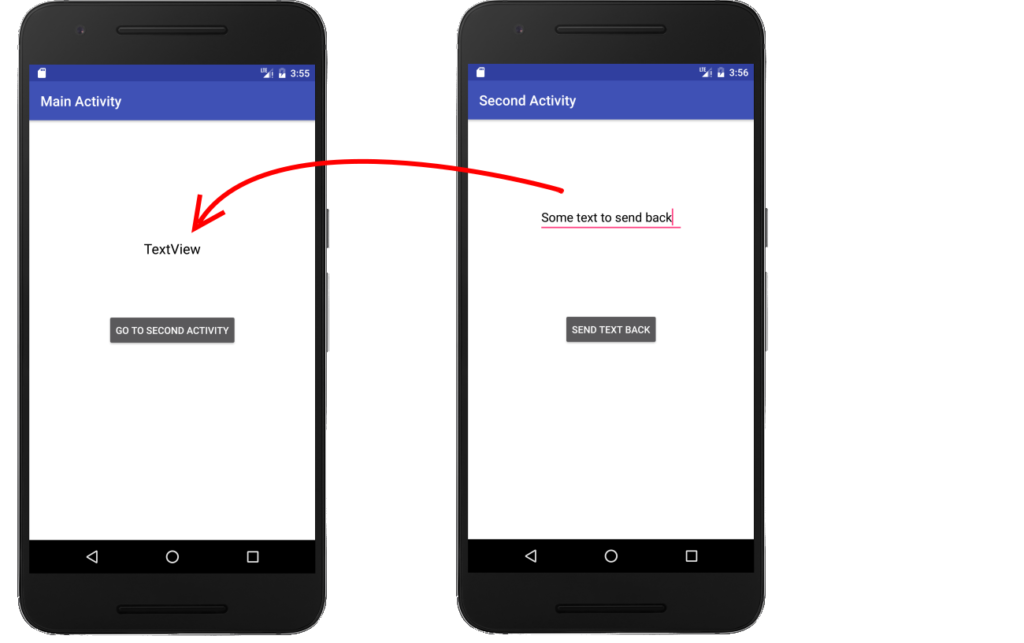
In the dynamic world of Android development, every application consists of multiple screens, known as Activities. These activities act as the foundation of user interaction, seamlessly guiding users through various tasks. However, unlike desktop applications, mobile apps must gracefully handle interruptions—such as incoming calls, switching between apps, or system constraints.
To manage these transitions effectively, Android provides a well-structured Activity Lifecycle. This lifecycle defines the different states an activity goes through, from its creation to its destruction. Understanding and handling these states properly ensures a smooth user experience, optimized resource management, and better app performance.

Activity Lifecycle States and Callbacks
An Activity in Android doesn’t just exist—it transitions through multiple states based on user actions and system events. The Android system provides lifecycle methods that help developers manage these state changes efficiently.
Here are the six main lifecycle methods every Android activity goes through:
1. onCreate() – Activity is being created
- Called when the activity is first created.
- Used to initialize UI components, set up event listeners, and restore saved data.
- Example:
@Override
protected void onCreate(Bundle savedInstanceState) {
    super.onCreate(savedInstanceState);
    setContentView(R.layout.activity_main);
}
onStart() – Activity becomes visible
- Called when the activity is about to appear on the screen.
- UI elements become visible, and animations can be started.
3. onResume() – Activity is in the foreground and interactive
- Called when the activity is fully visible and ready for user interaction.
- Ideal for starting animations, playing media, or refreshing UI components.
4. onPause() – Activity is partially visible
- Called when the user moves away from the activity, but it’s still partially visible (e.g., when a dialog appears).
- Use this method to:
- Pause animations.
- Stop media playback.
- Save temporary data.
@Override
protected void onPause() {
    super.onPause();
    pauseMediaPlayer(); // Custom method to pause media
}
5. onStop() – Activity is no longer visible
- Called when the activity is completely hidden (e.g., when the user opens another app).
- Good for:
- Stopping background processes.
- Releasing resources.
- Saving app state to persistent storage.
6. onDestroy() – Activity is about to be destroyed
- Called before the activity is removed from memory.
- Used for final cleanup tasks, such as:
- Closing database connections.
- Releasing system resources.
Additional Lifecycle Callbacks
Besides these six core methods, there are a couple of additional ones:
- onRestart() – Called when the activity is coming back from the stopped state.
- onSaveInstanceState() – Used to save small amounts of data before an activity is killed.
Activity Lifecycle Flow
Understanding the sequence in which lifecycle methods are called helps in designing efficient Android applications. Here’s how an activity transitions through different states:
1. When an Activity is launched:
onCreate()→onStart()→onResume()- At this point, the activity is fully interactive and visible to the user.
2. When the user switches to another app or receives a call:
onPause()is triggered first, allowing you to pause ongoing tasks (e.g., stopping a video).- If the activity is completely hidden,
onStop()is called.
3. When the user returns to the activity:
onRestart()→onStart()→onResume()- The activity regains focus and resumes interaction.
4. When the user closes the app or the system destroys the activity:
onPause()→onStop()→onDestroy()- This ensures proper cleanup of resources.
Visualizing the Activity Lifecycle
Imagine a music player app:
- When opened → It initializes and starts playing (
onCreate() → onStart() → onResume()). - If minimized → Music keeps playing, but UI is hidden (
onPause() → onStop()). - If reopened → UI is restored (
onRestart() → onStart() → onResume()). - If closed → Music stops, resources are freed (
onDestroy()).
Why is Activity Lifecycle Management Important?
Handling the activity lifecycle properly is crucial for building efficient and user-friendly Android applications. Here’s why:
1. Prevents Memory Leaks
- Failing to release resources (e.g., database connections, sensors, or network calls) in
onDestroy()can cause memory leaks, slowing down the app.
2. Ensures Smooth User Experience
- By saving user progress in
onPause()oronSaveInstanceState(), the app can restore the exact state when reopened.
3. Optimizes Battery & Performance
- Example: Stopping background tasks in
onStop()prevents unnecessary CPU and battery usage.
4. Handles Configuration Changes (like Screen Rotation)
- When the device rotates, the activity is destroyed and recreated.
- Using
onSaveInstanceState()ensures that important data (like form inputs) is not lost.
Best Practices for Managing Activity Lifecycle
✅ Release resources in onDestroy() (e.g., closing database connections).
✅ Pause animations & media in onPause().
✅ Save user data in onSaveInstanceState() to prevent data loss.
✅ Restart background processes in onResume() when the user returns.
Conclusion
Understanding and managing the Activity Lifecycle is essential for building high-performance Android applications. Each lifecycle method plays a vital role in handling app behavior, ensuring smooth user experience, and optimizing resource management.
By implementing best practices, such as saving user data in onSaveInstanceState(), releasing resources in onDestroy(), and pausing background tasks in onPause(), developers can prevent memory leaks, improve performance, and enhance app stability.
Mastering these lifecycle states will help you build efficient, responsive, and well-optimized Android apps that adapt to user actions and system constraints seamlessly. 🚀